Wisehosting KB
  • Home
  • About
Sign in Subscribe
Billing & Account

How to Upgrade or Downgrade Your Server Package

A step-by-step guide on how to upgrade or downgrade your server plan.

Zach Kõrgemäe

Zach Kõrgemäe

13 Feb 2026 — 1 min read
Share

How To Upgrade/Downgrade Your Package?

  1. Login to your Billing Area account.
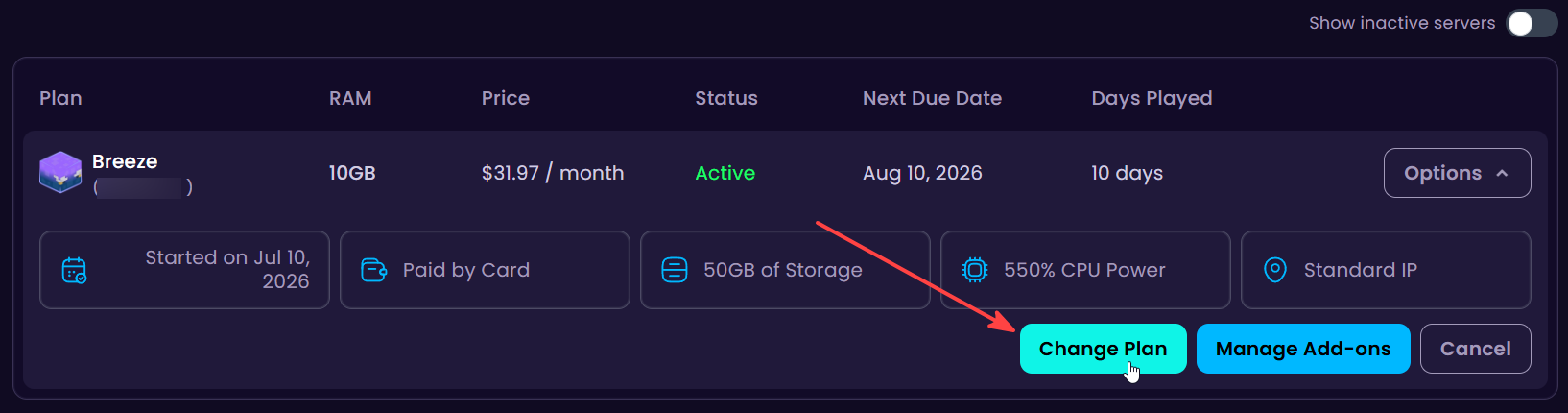
  2. Click on the Orders tab and pick the server you'd like to upgrade or downgrade by clicking on Change Plan.
💡
Both upgrading and downgrading can be accessed from the same button. No files or settings will be changed or lost with this process!
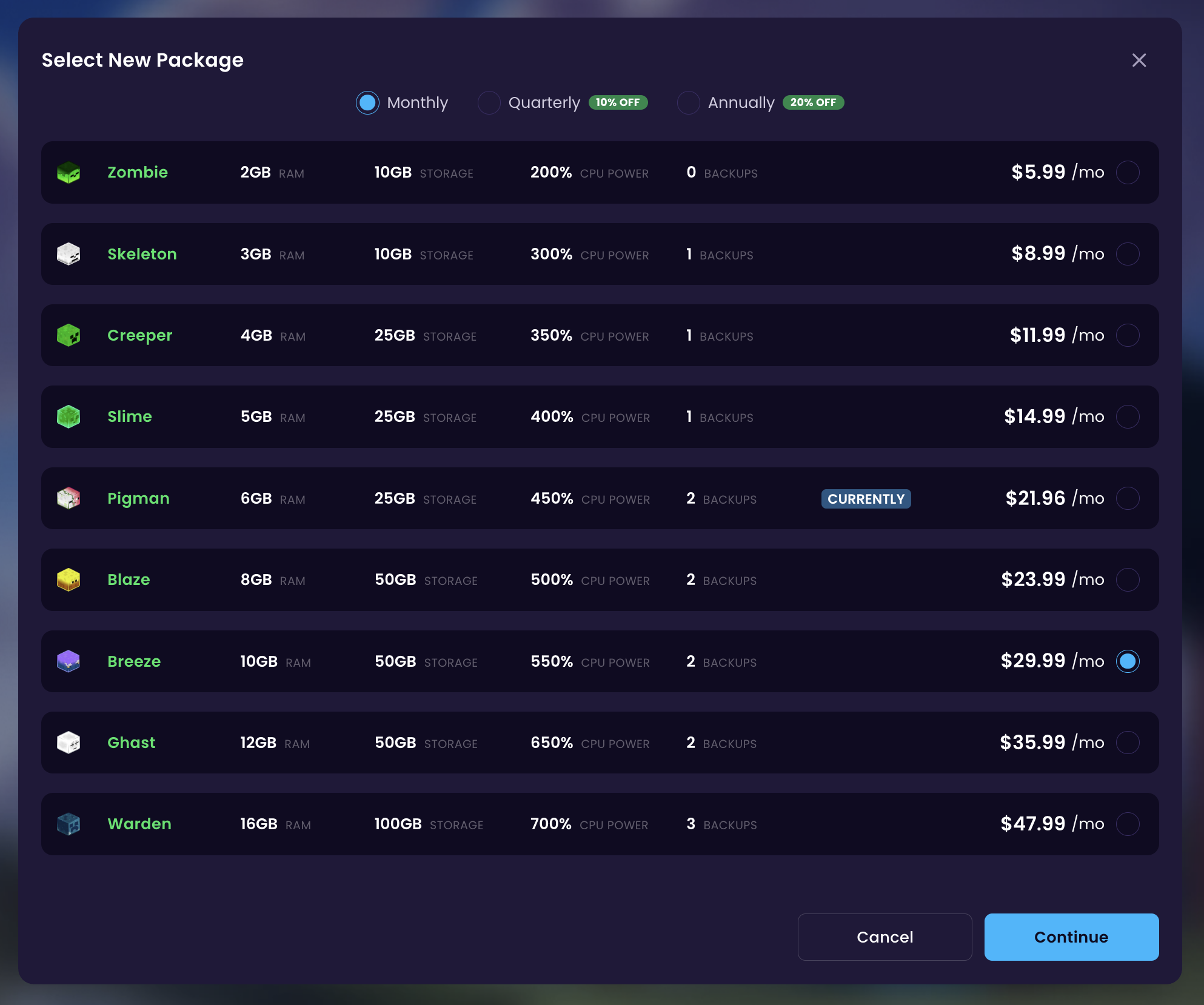
  1. In here you have the option to choose the new package and the billing cycle. I'm going to be upgrading from Pigman to Breeze. When selected, click on Continue.
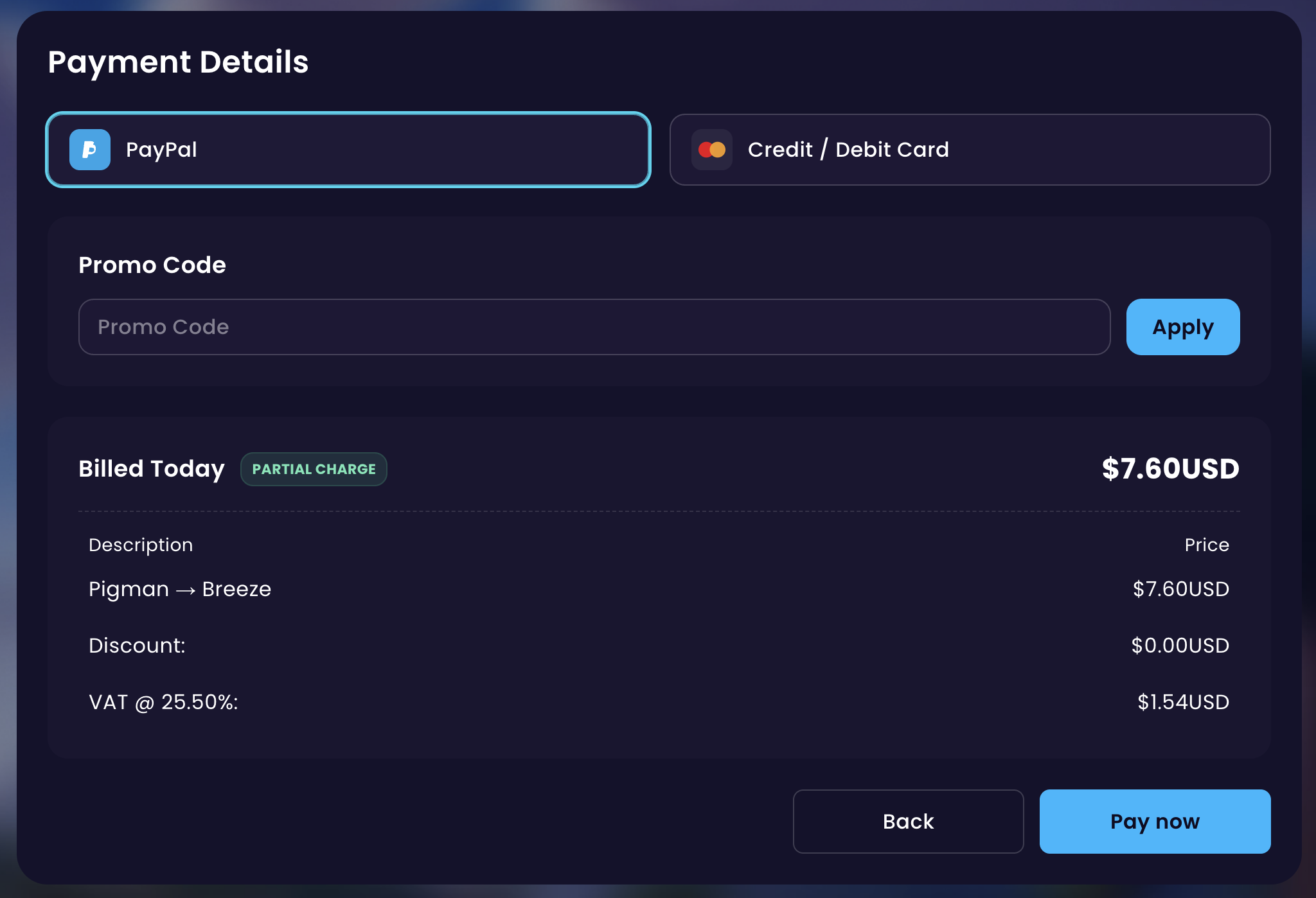
  1. After that you will be shown a page where you will see the Billed Today - you will only need to pay the difference, not the full price of the package. Confirm this by clicking on the Pay Now -button.
  1. Done! You now received an upgrade invoice and once that has been paid, your server will automatically be upgraded to the new plan. You may need to restart your server for the changes to be applied.

Read more

Top 3 Mods/Modpack Startup Crashes and How to Fix Them

Modded Minecraft servers usually fail to start for one of three reasons: a missing dependency, a client-only mod, or a mod conflict. Here's how to identify each one in your console or crash report and fix it.

By Rene F 25 Aug 2026

How to Install Plugins to Your Minecraft Server

A step-by-step guide on how to install plugins on your Minecraft server.

By Zach Kõrgemäe 03 Jul 2026

How to Convert a Server World into a Singleplayer World

A step-by-step guide on how to move your world from multiplayer server to singleplayer.

By Zach Kõrgemäe 03 Jun 2026

How to Download Your Entire Server from WiseHosting

A step-by-step guide on how to download your entire server.

By Zach Kõrgemäe 13 Feb 2026
Wisehosting KB
  • Sign up
Powered by Ghost

Wisehosting KB

Thoughts, stories and ideas.